How to describe image edits: what to change and preserve when replacing backgrounds
Separate image editing into changes, preserved details, and result checks to reduce unnecessary changes to the subject.
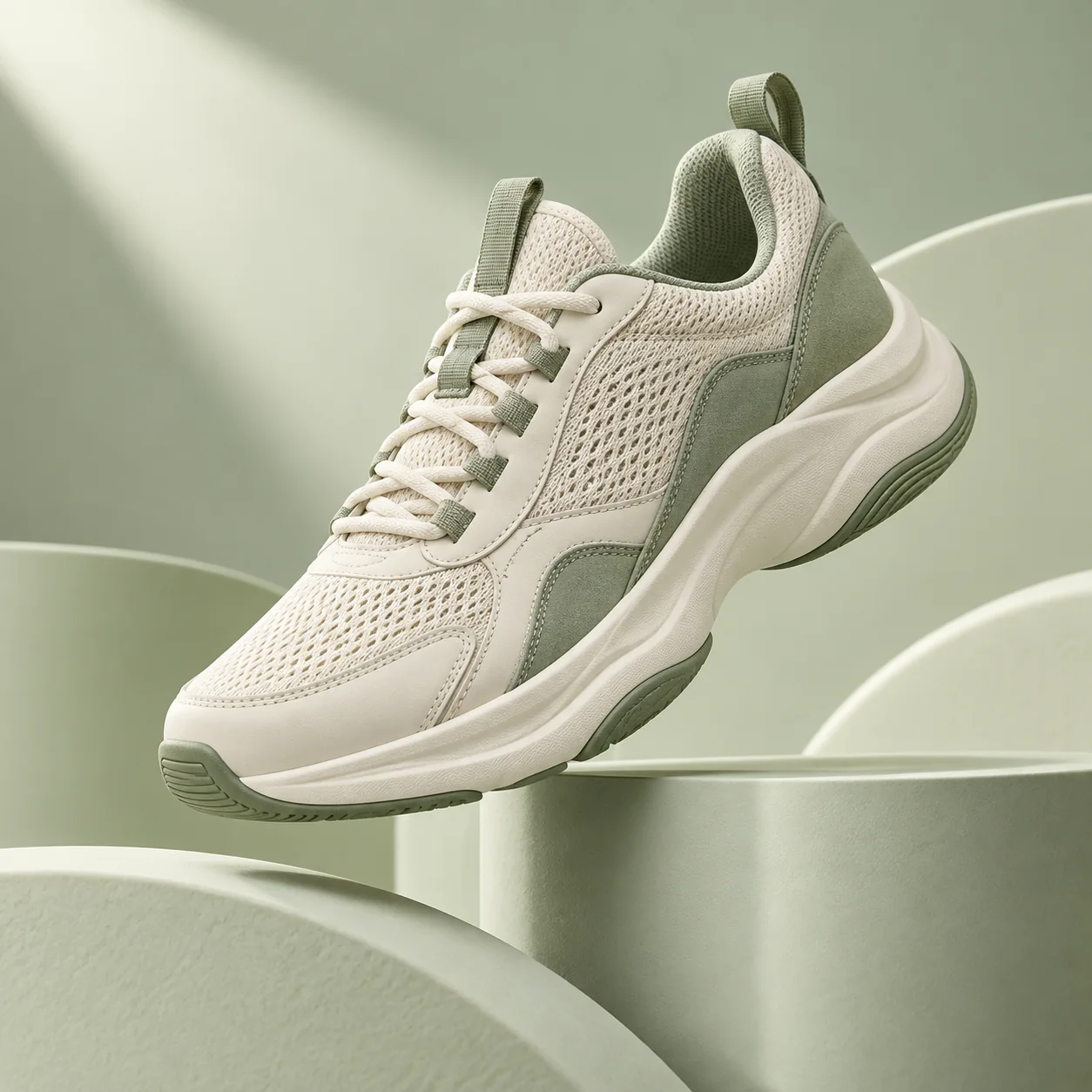
1. Prepare a clear reference you have permission to use
The original should show the entire subject, clear edges, and unobstructed text and structure. Heavy compression, missing parts, or a complex background makes editing and checking harder.
Pexuna supports PNG, JPG, and WebP previews up to 10 MB. Reference images remain in page memory while previewing and must be selected again after refreshing. Clicking Generate submits the image to the configured image service.
2. Choose one clear editing direction
For background replacement, describe the new background, support surface, and ambient light first. Avoid also redesigning the product, changing its color and viewpoint, and adding complex text in the same request.
For example: replace the background with a pale green wall, place the product on a beige stone platform, and add soft natural light from the upper right with contact shadows. Keep this description separate from preservation requirements.
3. List the specific details to preserve
List the outline, proportions, colors, materials, label positions, and viewpoint. A specific list is easier to check than asking to leave everything else unchanged.
Image services vary in how well they preserve identity, structure, and text. Preservation instructions express intent but cannot guarantee exact consistency, especially for small logos, precise labels, and complex structures.
只替换背景和必要的环境光。保留产品的轮廓、瓶身比例、原始颜色、瓶盖形状和标签位置。主体完整,边缘干净,生成自然接触阴影,不新增文字或装饰。
4. Compare with the original, beyond overall appearance
Check the subject shape first, then key details and the relationship between shadows and the environment. A prettier background does not mean the product is accurate. This check matters for real product displays.
- Outline and proportions: look for distortion or missing edges.
- Color and material: check for unintended changes to the product itself.
- Text and logos: check placement and spelling.
- Lighting and shadows: check that shadow directions match the background.
5. Keep the original and record each editing direction
Record one clear goal for each edit, such as a warm background or soft side lighting. Copy prompts into your notes to compare the direction of each change.
Reference images are previewed on the current page and must be selected again after refreshing. Generated images and prompts are saved to your account history.
Put it into practice
Open related inspiration and start creating with a prompt.